To make football graphics in Canva, create a 1080 × 1080 design, start from a sports template, add your club colours and crest, drop in player photos and the match details, then download a PNG, or an MP4 if you’ve animated it. That works well for one-off posters. For the weekly matchday posts, SportGraphics is faster: set your club up once and designer-built templates fill themselves in.
This guide uses Canva’s named features, so it stays useful when the buttons move, and marks every step that needs a paid Canva plan as of August 2026. Then we cover where Canva struggles for a club that posts every week, and the quicker way to make the same graphics.
What you need before you open Canva
- Your club colours as hex codes. “#0B2545”, not “navy-ish”. Two or three colours is plenty.
- A high-resolution crest, ideally a PNG with a transparent background so it sits cleanly on any colour.
- Player photos shot the same way: same framing, same background, decent light. Consistency matters more than the camera.
- One or two fonts you’ll use on every graphic, and nothing else.
- This week’s details: opponent, competition, date, kickoff, venue, and the starting XI with shirt numbers.
Which Canva features need Canva Pro?
Canva Free covers more of this tutorial than most people expect. Here’s the split for the features we use, based on Canva’s own help centre as of August 2026. Canva updates its plans regularly, so check before you rely on one.
| Feature | Canva Free | Canva Pro |
|---|---|---|
| Custom sizes and templates | Yes, free templates | Adds premium templates and elements |
| Brand Kit | One colour palette, up to three colours | Logos, uploaded fonts, up to 100 palettes |
| Upload your crest and photos | Yes | Yes |
| Background Remover | No | Yes |
| Animate | Yes, basic animations | More animations and transitions |
| Download PNG or MP4 | Yes (MP4 up to 1080p) | Yes (MP4 up to 4K) |
| Transparent-background download | No | Yes |
| Resize (Magic Resize) | No | Yes |
| Bulk Create | No | Yes (desktop only) |
One more Free-plan catch: if a template uses premium elements, Canva will ask you to pay for them, upgrade, or download a watermarked draft. Swap those elements for free ones before matchday, not after.
How to make football graphics in Canva, step by step
1. Create a design at the right size
From the Canva homepage, choose Create a design and search for Instagram Post (the square format is 1080 × 1080 px), or pick Custom size and enter 1080 × 1080 px yourself. That square works in feeds on Instagram, Facebook and X. For stories and reels you’ll also want 1080 × 1920 px; step 9 covers that.
2. Find a Canva football template
Open the Templates panel and search for the moment you need: “football matchday”, “football lineup”, “soccer goal” or “match result”. Try both football and soccer, because the results differ. Pro templates are flagged, so you can skip them if you’re on Free.
Choose on structure, not colour, because you’re about to replace the colours anyway. A good Canva football template has:
- One obvious focal point: the score, the scorer or the fixture.
- A clear space for your crest, and for the opponent’s.
- Text that’s still legible at thumbnail size on a phone.
- Photo frames rather than flat images, so players swap in quickly.
3. Set up your Brand Kit (partly Pro)
Open Brand from the homepage side panel. On Canva Free you get one colour palette with up to three colours: enough for a primary, a secondary and an accent. Add your hex codes and they’ll appear in the colour picker in every design. Adding logos and uploading fonts to the Brand Kit needs a paid plan, so on Free keep your crest in Uploads and write your font names down somewhere the next volunteer will find them.
4. Upload your crest and player photos
Drag your crest and photos into Uploads, then onto the design. Drop photos into the template’s frames so every player is cropped the same way. To recolour the template, select an element, click its colour in the toolbar and pick a brand colour; Canva can apply it across all pages at once, which helps on multi-page sets.
5. Cut out player photos with Background Remover (Pro)
Player cut-outs are what make football graphics look professional. Select a photo and choose BG Remover from the toolbar, and Canva removes the background for you. It’s a paid-plan feature. On Free, the workaround is to shoot players against a plain wall, or keep them inside frames on a solid club-colour background instead of cutting them out.
6. Add the match details
Replace the placeholder text with the opponent, competition, kickoff, date and venue, or the minute and score for a goal. Keep the hierarchy strict: the key fact biggest, supporting details smaller. Then zoom out to thumbnail size. If you can’t read the score, nobody scrolling past can either.
7. Animate it (optional)
Select an element and choose Animate from the toolbar, or animate the whole page. Basic animations are free; more styles and transitions come with Pro. Less is more: animate the headline and the player, leave the small print still, and keep it short enough to loop cleanly.
8. Download as PNG or MP4
Go to Share, then Download. Choose PNG for a static graphic, or MP4 Video if you animated it. Canva Free downloads MP4s at up to 1080p, which is plenty for social feeds.
9. Resize for stories (Pro)
The Resize button (Magic Resize) copies your square design to 1080 × 1920 px in one go, but it needs a paid plan. On Free, create a second design at 1080 × 1920 px and copy the elements across, rearranging them for the taller format. Don’t drop the square version into a story with empty space above and below it.
10. Duplicate pages to build a weekly set
Keep one design per match with a page for each post: fixture, lineup, a goal page you can duplicate, substitution and full time. Each week, make a copy of last week’s file and edit it rather than starting from scratch. On Pro, Bulk Create (desktop only) can generate one page per row of a spreadsheet, which is handy for a player-profile series. For which posts to make and when, see our guide to making matchday graphics for a football club.
Matchday graphics in Canva: tips for the four big posts
The matchday poster
To make a football poster on Canva that people actually read, lead with the fixture: both crests, the opponent, kickoff and venue. Resist the urge to add sponsors, hashtags and a quote to the same graphic. For layout inspiration, see our matchday graphic ideas.
The starting lineup
A Canva football lineup template usually lists eleven names over a pitch or down one side. This is where the hours go: eleven names, eleven numbers and often eleven photos to swap every week, plus the bench. Keep a document of correctly spelled names and numbers to paste from.
The goal graphic
Build the goal page in advance so the scorer photo, minute and score are the only things you touch. During the match, duplicate the page, swap the photo, type the minute and score, and download. Even on a phone, that’s a few minutes per goal.
The full-time result
Score first, then scorers and minutes. Keep a running list of scorers during the match so you’re not reconstructing it at the whistle.
The problem with Canva for the weekly matchday cycle
None of this is a knock on Canva. But a football club doesn’t make one graphic; it makes the same five posts every match, all season, and that’s where the manual model shows its cost:
- Every graphic is manual. Each fixture, goal and result is a fresh edit, however good your templates are.
- A lineup means eleven names and photos every week. Plus numbers, plus the bench, plus the typo someone spots after you’ve posted.
- There’s no roster. Canva doesn’t know who your players are, so names, numbers and photos live in your head or a spreadsheet, not in the tool.
- Consistency drifts. When the account passes between volunteers, fonts, colours and layouts slowly wander, and Free’s three brand colours don’t hold your logo or fonts.
- Animation is DIY. You can animate in Canva, but you’re the motion designer for every post, and clean cut-outs need a paid plan.
Even with a good template set, budget 30–60 minutes per matchday in Canva. That’s time most club volunteers would rather spend watching the game. (We compared the two approaches side by side in SportGraphics vs Canva.)
The faster way: football graphics with SportGraphics
SportGraphics is a web app built for exactly this weekly cycle. Designer-built templates fill themselves from your club setup, so you choose the moment and the design, add the match details, and export.
- Set up once. Add your colours, crest, fonts and roster: names, numbers and photos. Automatic background removal turns player photos into clean cut-outs on every plan, Free included.
- Pick the moment. Matchday, starting lineup, goal, substitution or full-time result. Browse the matchday graphic templates, starting lineup templates and goal announcement templates.
- Pick a design. For example the Tactical Board lineup, the Next Up fixture board or Goal Stack for the big goals.
- Add the match details. Type the opponent and kickoff, or pick the goalscorer and type the minute; player names, numbers and photos come from your roster, and colours and crest from your club setup.
- Export. Download a PNG or an animated MP4, as a 1:1 feed post or a 9:16 story. No resizing, no keyframes.
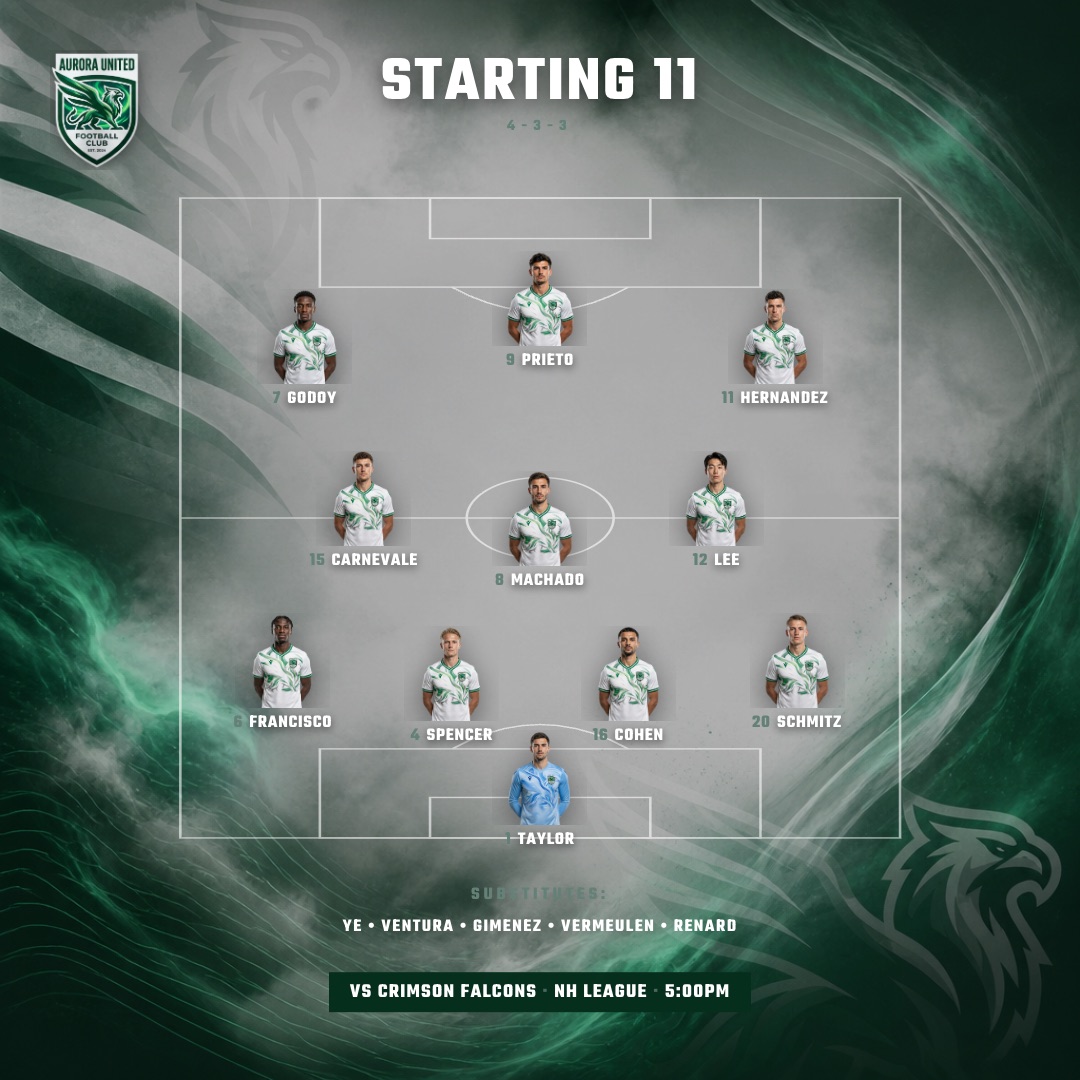
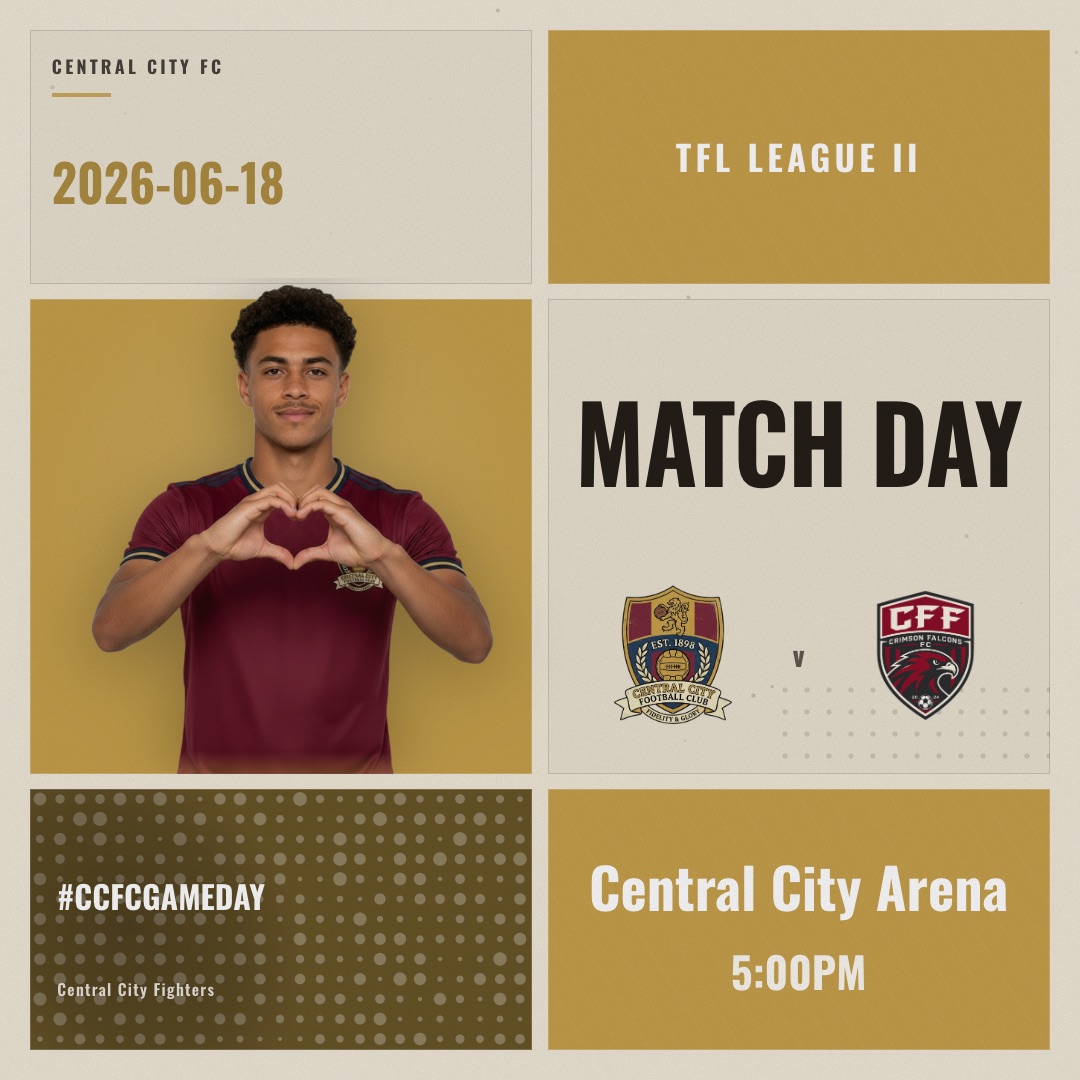
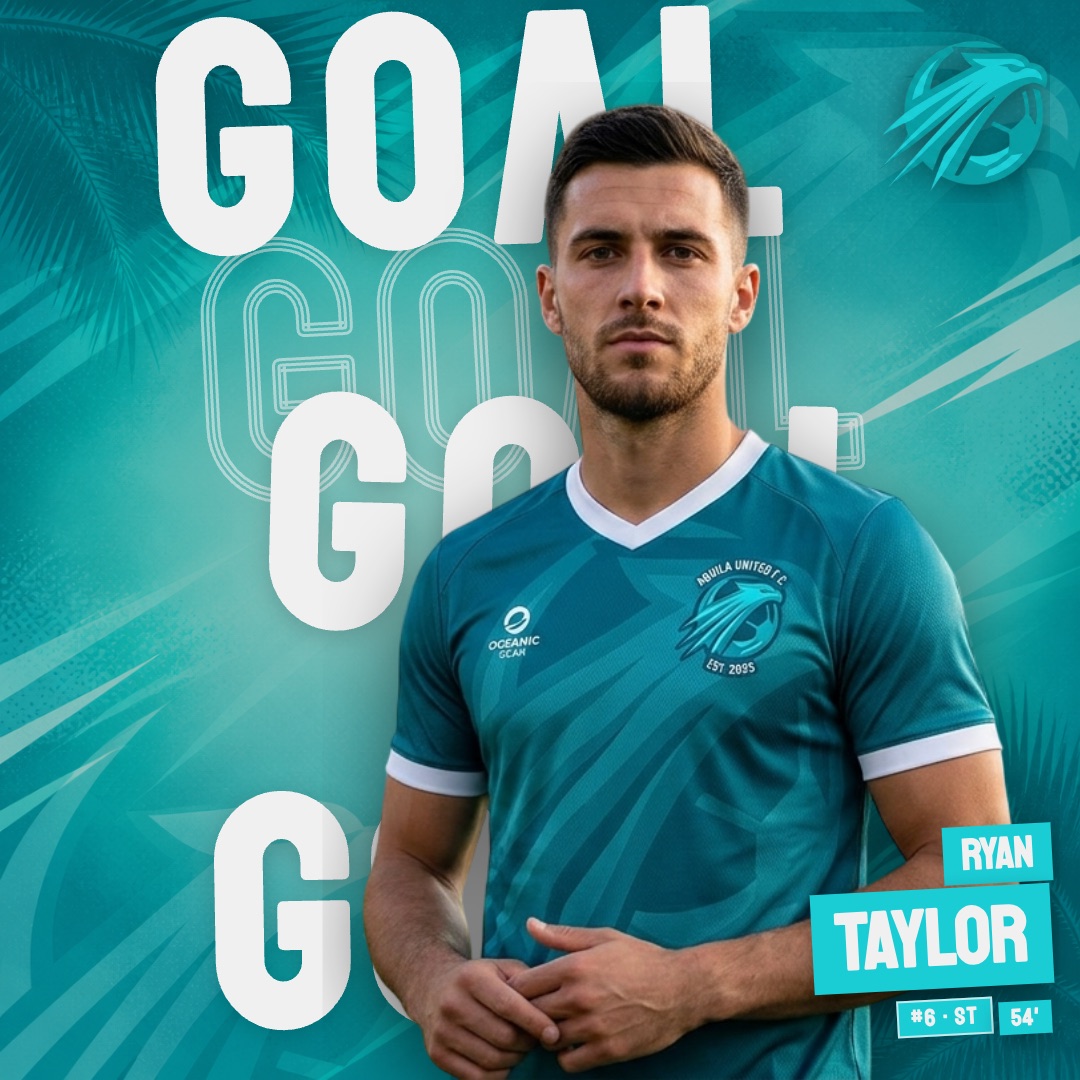
From a phone at the touchline, a goal graphic takes under a minute. Because the club profile is shared, the branding doesn’t live on one volunteer’s laptop, and the feed looks the same whoever is posting. If you miss Canva’s freedom, Pro includes a Canva-style manual editor for fine-tuning any design.
The Free plan needs no credit card: make one watermarked Spotlight matchday or Player Impact goal graphic for one player, as a 1080×1080 PNG. Basic ($9/mo) removes the watermark and unlocks every design, the animated MP4s, story sizes and all five matchday event types; Pro ($15/mo) makes exports unlimited. The full breakdown is on the SportGraphics pricing page.
Canva vs SportGraphics: time per matchday
These are rough estimates for a typical match, assuming your Canva templates are already built. Your own times will vary, but the shape of the difference won’t.
| Task | Canva (rough estimate) | SportGraphics (rough estimate) |
|---|---|---|
| First-time setup | A few hours building a template set | About 15 minutes: colours, crest, roster |
| Fixture announcement | 5–10 minutes | Under a minute |
| Starting lineup | 10–20 minutes | Under a minute |
| Each goal or substitution | 3–5 minutes | Under a minute |
| Full-time result | 5–10 minutes | Under a minute |
| Animated version | Extra time, animated by hand | Built into every design (paid plans) |
| Story size (9:16) | Resize (Pro) or rebuild by hand | Same export (paid plans) |
| A whole matchday | 30–60 minutes | A few minutes |
When Canva is still the right tool
Keep Canva. It’s still the right tool for one-off posters, print, sponsor decks, fundraising flyers and club newsletters: anything that isn’t repeated every week and benefits from freeform design. Plenty of clubs use both, with Canva for the occasional one-off and SportGraphics for the matchday cycle.
One honest caveat the other way: SportGraphics is soccer/football only today, with more sports planned, so a multi-sport club will still want a general tool for its other teams in the meantime. For a wider look at the options, we ranked them in the best football graphics apps for clubs.
Frequently asked
Yes, for one-off work. Canva is an excellent general design tool, and its free plan covers templates, uploads, basic animation and PNG or MP4 downloads — ideal for posters, print and sponsor decks. Where it struggles is the weekly matchday cycle: every lineup, goal and result is a manual edit, there's no roster for anything to fill from, and the features that make it quick (Background Remover, Magic Resize) need a paid plan. For that repeat work, a dedicated club tool like SportGraphics is much faster.
SportGraphics. You set your club up once (colours, crest, fonts and a roster with photos) and designer-built templates fill themselves in, so a matchday, lineup, goal, substitution or full-time graphic takes under a minute, each with a built-in animated MP4 version in feed and story sizes. It's free to start with no credit card, and watermark-free from $9/mo. Keep Canva for posters and print. SportGraphics is soccer/football only today, with more sports planned.
Mostly, yes. As of August 2026, Canva Free lets you create custom-size designs, use free templates, upload your crest and photos, keep one brand colour palette of up to three colours, add basic animations and download PNGs or MP4s (up to 1080p). Background Remover, logos and uploaded fonts in the Brand Kit, Magic Resize, Bulk Create and transparent-background downloads need a paid Canva plan, and premium elements must be paid for or downloaded as a watermarked draft.
Use 1080 × 1080 px (Canva's square Instagram Post format) for feed posts on Instagram, Facebook and X, and 1080 × 1920 px for stories and reels. Make both versions of your important posts rather than squeezing a square graphic into a story.
As a rough estimate, budget 30–60 minutes per matchday once your Canva templates are built, with the starting lineup taking longest because it means eleven names and photos every week. With a club tool like SportGraphics, where your saved club setup fills the designs, each graphic takes under a minute.